
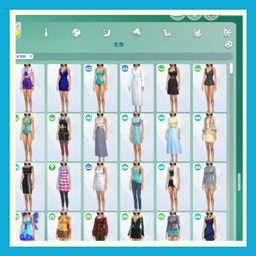
Dynamic CAS Companion
Description
October 30, 2026 – Update
- [New Feature] Added the ability to copy outfits to individual outfit slots.
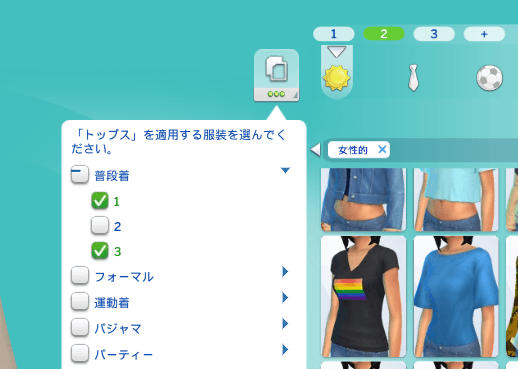
- [Fix] Fixed outfit slots overlapping the icons above when multiple slots are available.
- [Fix] Fixed the upper UI elements overlapping the side panel.
- [Fix] Fixed the Styled Looks search feature.
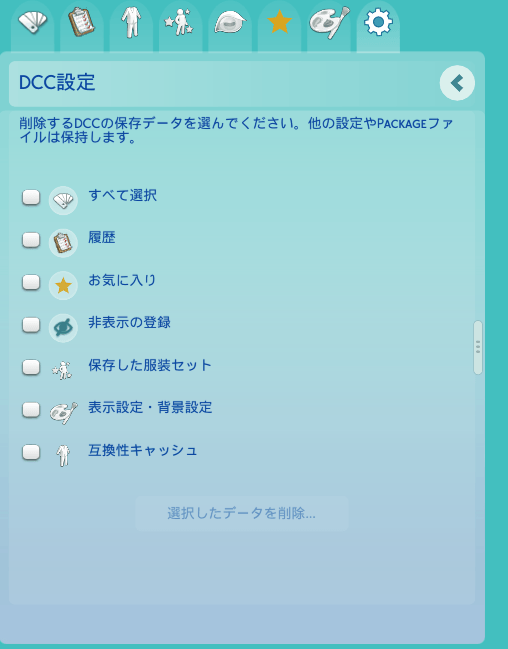
- [New Feature] Added an option to remove mod-specific settings from
UserSetting.ini.
October 28, 2026 – Update
- Updated for game version 1.129.39.1030 (compatibility with older versions is unknown).
- Added an option to toggle Styled Looks thumbnails.
- Added support for navigating between items using the Left and Right arrow keys.
- Added support for switching item swatches using the A and D keys.
October 24, 2026 – Update
- Added individual × buttons to remove equipped items from Skin Details and other subcategories.
- CC Only filter now remains active when switching between categories.
- Selected items are now automatically positioned near the center of the catalog.
- Disabled keyboard shortcuts while entering names in the Saved Outfits panel.
October 22, 2026 – Update
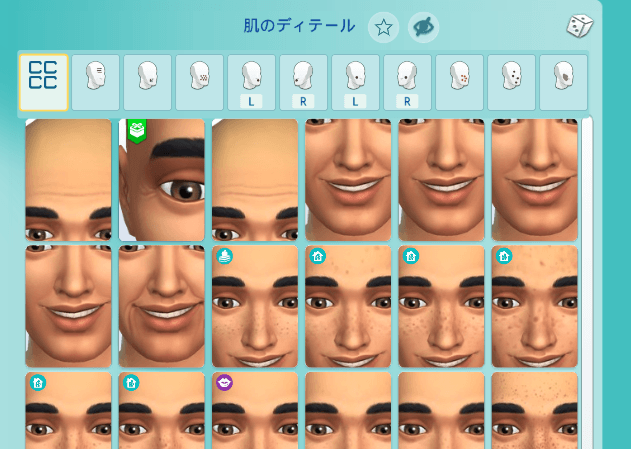
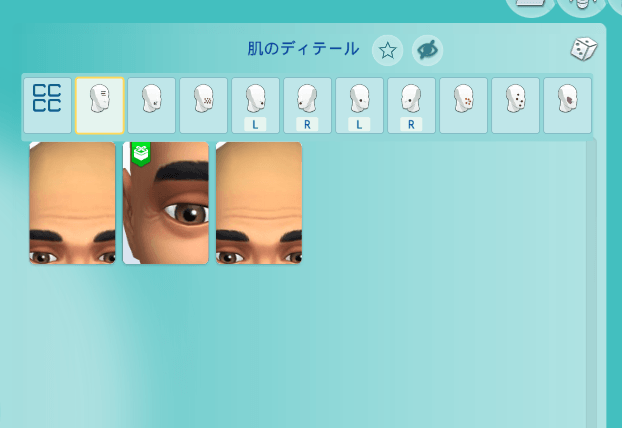
- Added advanced category filters for Skin Details, accessories, and body details.
- Click category icons to quickly filter and find specific CAS items.
October 19, 2026 – Update
- Added the ability to remove all clothing and accessories, or items in specific categories, using the × icon in the Current Outfit panel
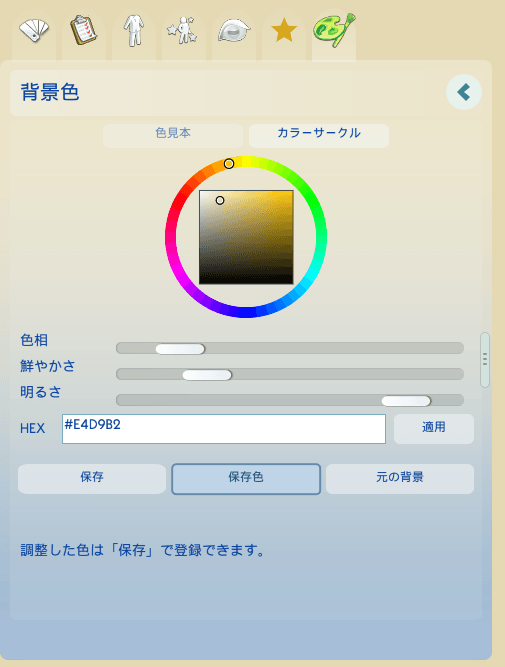
- Added a color wheel for more intuitive color selection.
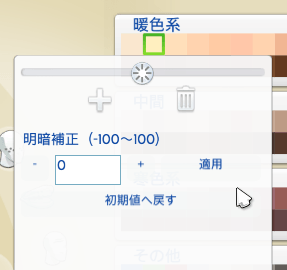
- Expanded the skin tone brightness slider range for greater customization.
- Added support for manual numeric input to precisely adjust skin brightness.
Dynamic Column Resizing
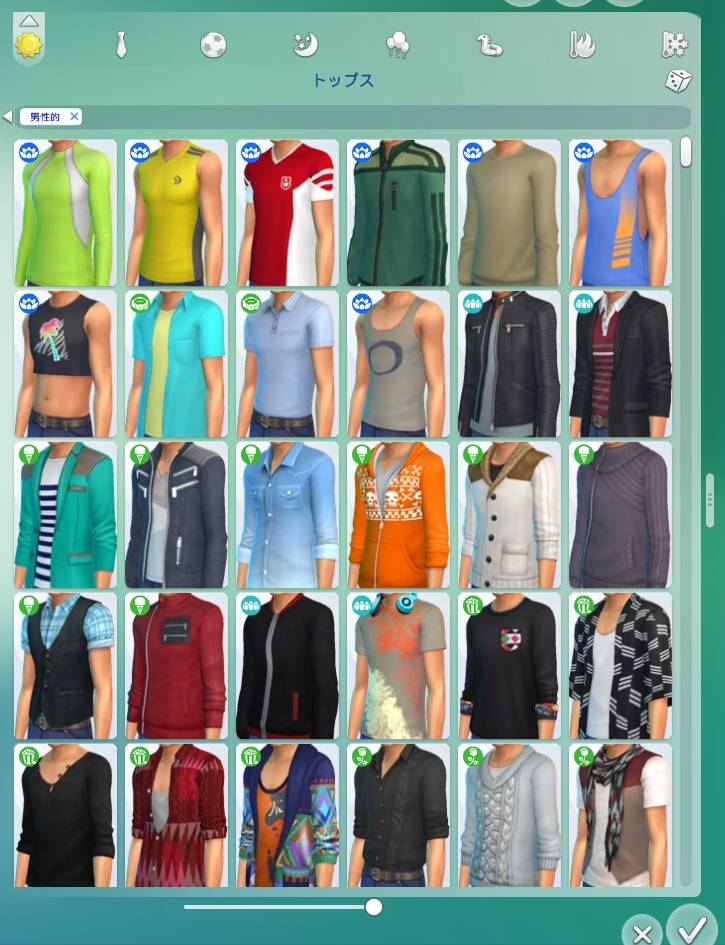
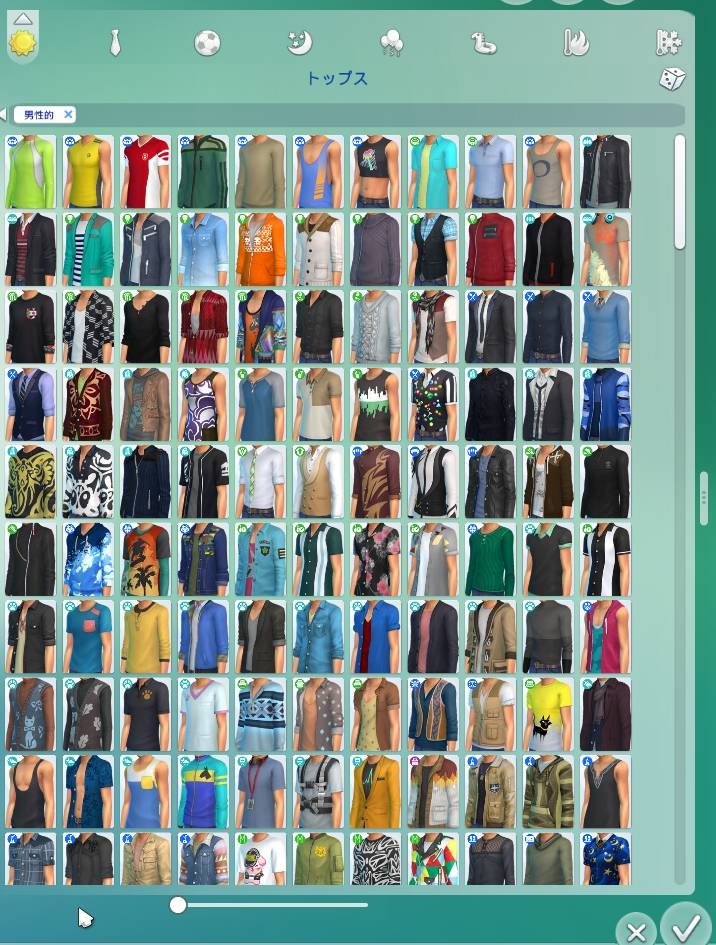
Dynamic CAS Columns allows you to resize the Create-a-Sim catalog from 2 to 6 columns simply by dragging the right edge of the panel.
The catalog resizes in real time, so you can quickly switch between a compact view and a wider layout depending on how much space you want for browsing CAS items.
Hotkeys
| Hotkey | Function |
|---|---|
| Ctrl + Shift + 2 | Reset column count to default |
| P | Pause / Resume Sim |
| ↑ / ↓ | Scroll through the catalog |
| ← / → | Navigate between catalog items |
| A / D | Switch swatches of the selected item |
Thumbnail Size Slider
You can also adjust the size of CAS catalog thumbnails using the slider at the bottom of the catalog. Thumbnail size can be changed from 50% to 100%, and the catalog automatically rearranges the items to make use of the available space.
Styled Looks Thumbnails
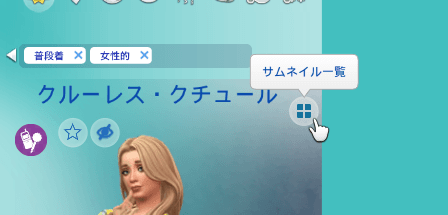
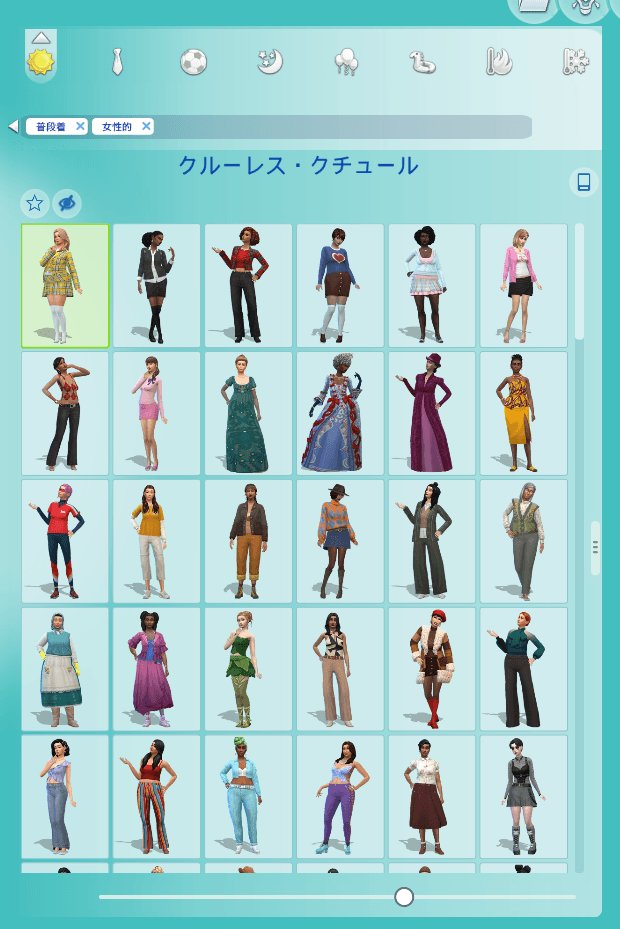
Click the icon in the upper-right corner of the Styled Looks panel to switch to thumbnail view.
You can also use the Custom Content filter to display only custom Styled Looks.
Favorites
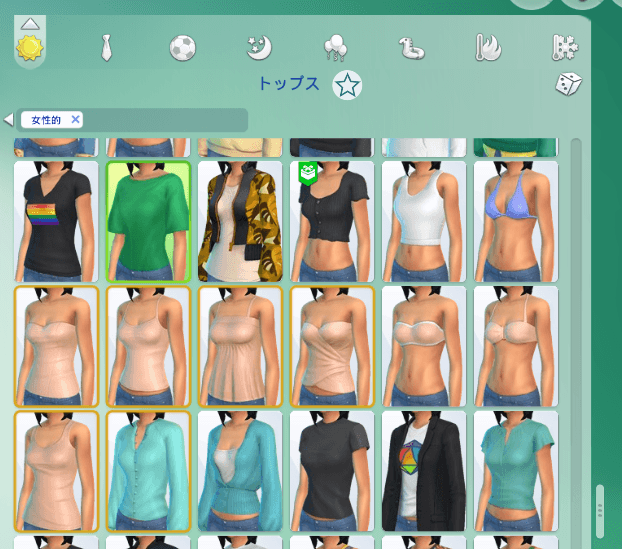
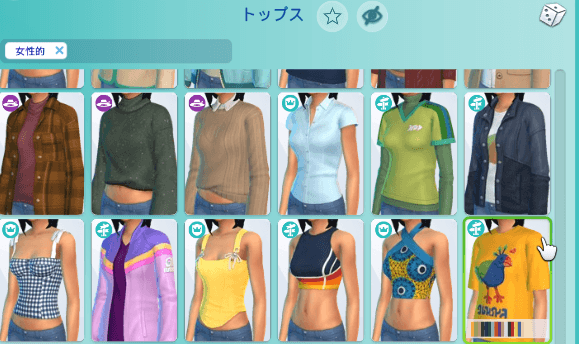
Right-click any CAS item thumbnail to add it to your favorites.
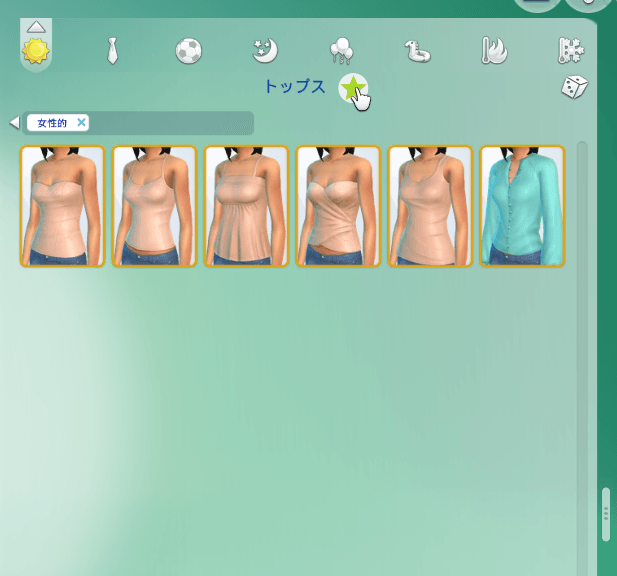
Click the star icon next to the category name to filter the catalog and display only your favorited items.
To remove an item from your favorites, simply right-click its thumbnail again.
Right-click the dice icon to randomly select and equip items from your Favorites within the current category.
Hide CAS Items
You can hide unwanted CAS items from the catalog using the eye icon.
- Left-click the eye icon to enable or disable Hide Mode.
- Right-click the eye icon to toggle the list of hidden items.
- While Hide Mode is enabled, right-click an item thumbnail to hide or unhide it.
History Panel
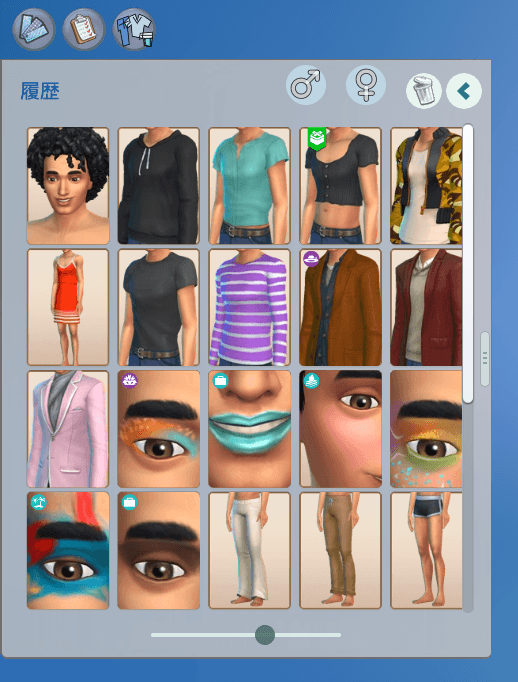
The History panel keeps track of CAS items you have recently selected, making it easy to return to something you tried earlier without searching through the catalog again.
Items in the History panel can be selected just like regular catalog items, allowing you to quickly compare different looks while creating your Sim.
Swatch Preview
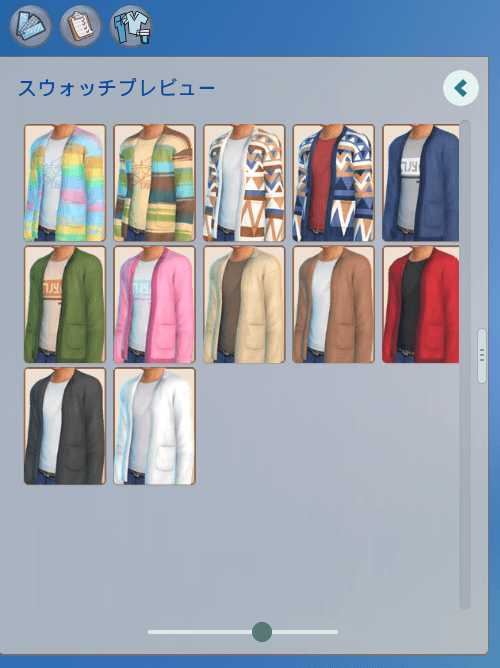
The Swatch Preview panel gives you a dedicated view of the available color swatches for the currently selected CAS item.
This makes it easier to browse and compare different color variations without taking up additional space in the main catalog.
Current Outfit
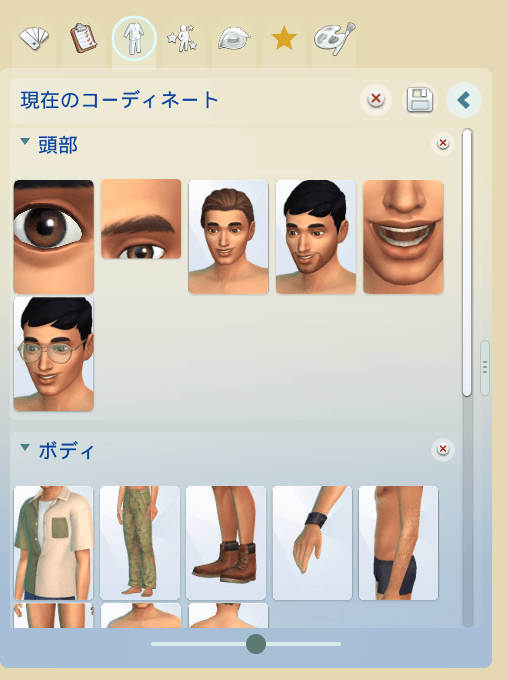
The Current Outfit panel shows the CAS items your Sim is currently wearing, organized by category.
You can quickly review the items that make up the current outfit and select or remove individual items directly from the panel.
You can save your current outfit with a custom name using the Save button in the top-right corner.
Click the × icon to remove all clothing and accessories at once, or just those in a specific category.
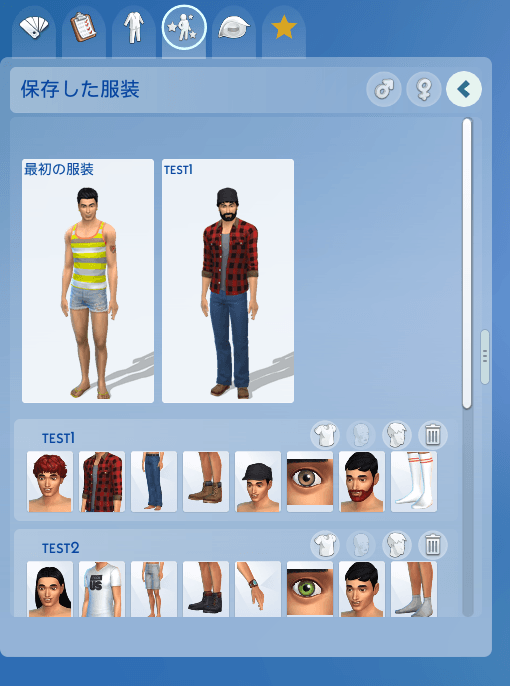
Saved Outfits
Save your favorite outfits and looks, and easily access them whenever you need them.
Use the icons on the right side of each saved outfit to apply Clothing, Makeup, or Hair & Facial Hair separately, or to delete the saved outfit.
Click any thumbnail to apply only that individual item to your current Sim, allowing you to mix and match pieces without changing the entire outfit.
You can also use the icons at the top of the panel to filter saved outfits by Masculine or Feminine fashion preference, making it easier to find the looks you want.
Thumbnails of your original outfit and any outfits you change into will be displayed. You can click them to switch back to your original outfit or change into another saved outfit.
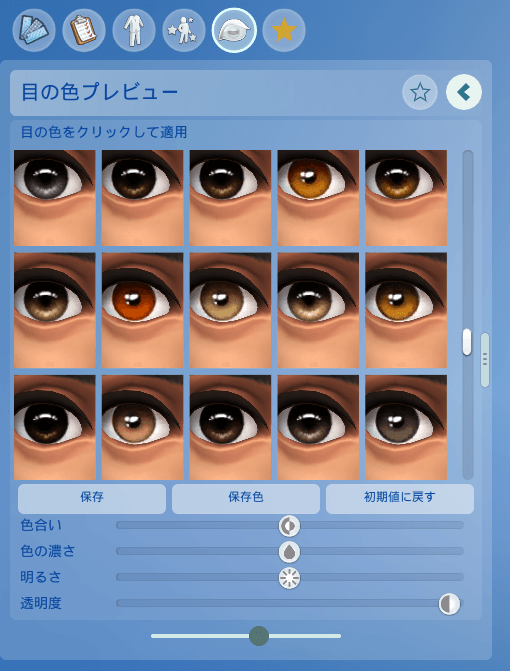
Eye Color Preview
Browse and select eye colors with visual previews, instead of relying on the standard color swatches.
You can also customize eye colors using color sliders, allowing you to adjust their appearance. This feature is available only for eye colors with compatible textures.
Save your favorite eye colors for easy access, and click the star icon in the top-right corner to filter the panel and display only your favorites.
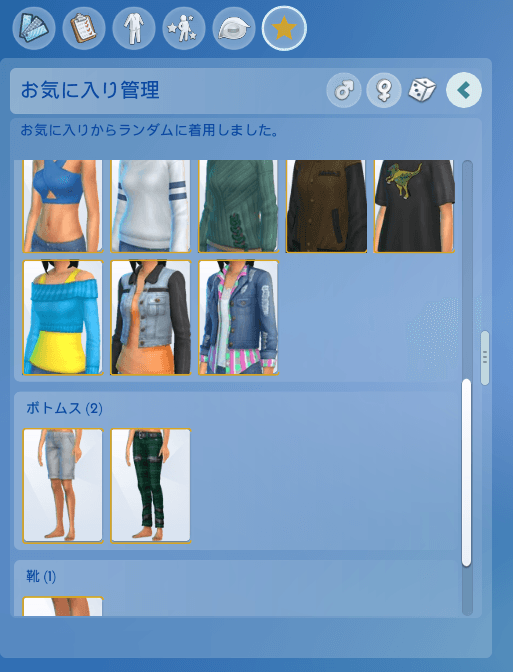
Favorites Manager
View and manage all your favorite CAS items, conveniently organized by category.
Right-click any item to remove it from your Favorites.
Use the Masculine and Feminine icons in the top-right corner to filter your favorites by fashion preference.
Click the dice icon to randomly select and equip items from your Favorites, making it easy to create new looks using only your favorite items.
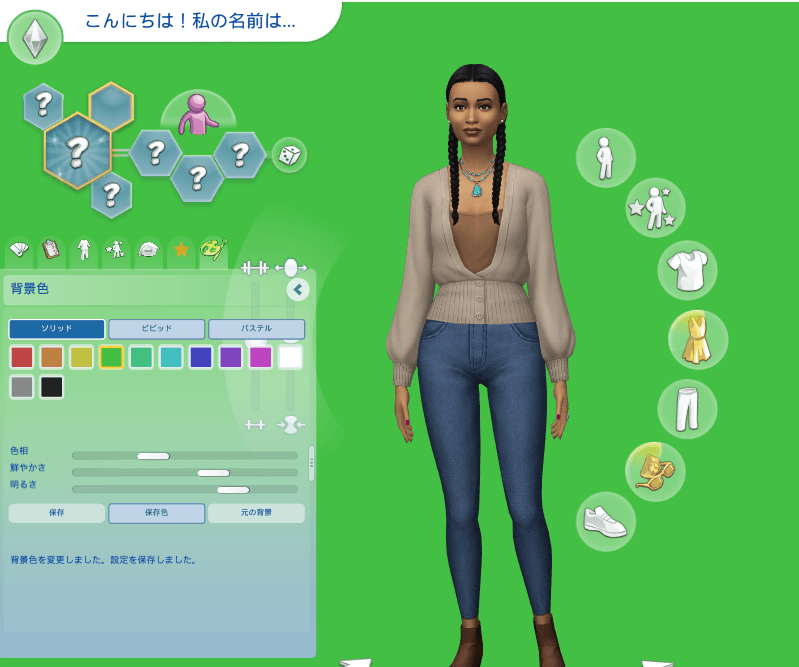
Background Color Customization
Note: When the background feature is enabled, transparent parts of Alpha CC may disappear. Until this issue is resolved, please disable the background feature when using Alpha CC.
Customize the CAS background with your favorite colors!
- Color Presets: Choose from Solid, Vivid, and Pastel color palettes.
- Color Adjustment: Fine-tune your selected color using the Hue, Saturation, and Brightness sliders.
- Save Colors: Save your custom colors and access them anytime through the Saved Colors menu.
- Restore Original Background: Easily switch back to the default CAS background.
Your selected background color is automatically saved and restored the next time you open CAS.
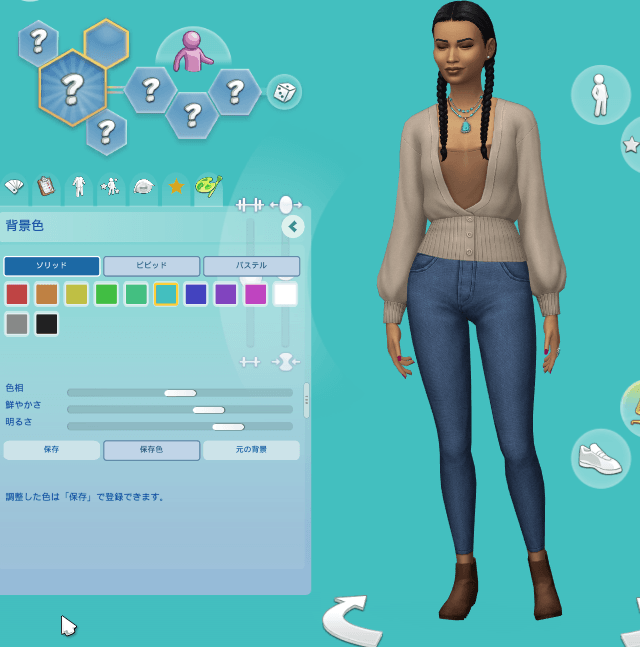
You can also use the color wheel to intuitively choose your desired color.
Settings
You can delete all settings associated with this mod.
CAS Playback Controls
Playback controls are also available on the bottom navigation bar. Use the pause button to stop your Sim’s movement in CAS, and the play button to resume it whenever you want.
You can also press the 'P' key to quickly toggle between pause and play.

The skin tone slider range has been expanded, allowing you to adjust skin brightness over a wider range. You can also enter values manually for precise adjustments.
Advanced Category Filtering
Find exactly what you're looking for with more detailed CAS category filters!
Skin Details can now be filtered by specific areas and features, such as Forehead, Mouth, Freckles, and more. Simply click the corresponding icon to display only the items in that category.
More detailed filtering is also available for accessories, including rings, and body skin details, making it easier to browse and find specific items without scrolling through endless lists.
Saved Settings
Your selected column count and thumbnail size are saved automatically and restored the next time you open CAS.
The main CAS catalog settings are stored in UserSetting.ini under [uiaccountsettings] as:
dynamic_cas_columns.columns#number = Ndynamic_cas_columns.thumbnail_scale#number = S
The History, Swatch Preview, and Current Outfit panels share their own layout settings:
dynamic_cas_history.columns#number = Ndynamic_cas_history.thumbnail_scale#number = S
where N is the selected number of columns and S is the saved thumbnail scale.
Conflicts
- Mods that increase the number of CAS columns
- Color Sliders Mod's Eyebrow Sliders Package (DCC is compatible with the eyebrow sliders, so this package is not required.)
Compatible Mods
- Color Slider mods
- More Traits in CAS
- Mods that change CAS UI colors (however, mods that also modify CAS UI fonts may cause conflicts).
- HIDE CAS UI